


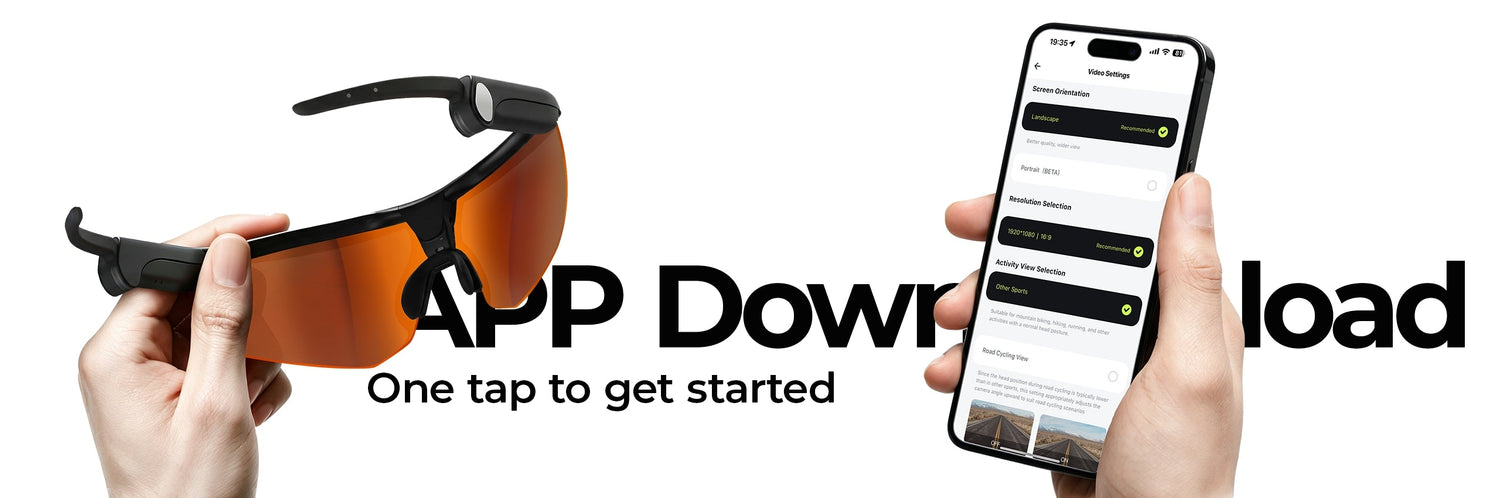
App Guide
A practical BleeqUp App workflow for setup, clips, highlight review, group context, and post-ride sharing.
Ranger is designed to make ride footage easier to capture. The BleeqUp App is where that footage becomes useful after the ride. It is the companion workspace for connecting the glasses, importing clips, choosing video and sound settings, tracking a ride, reviewing highlights, and staying coordinated with a group.
Recording is only the first step. If clips remain on a device, or settings take too long to adjust, the camera becomes another piece of gear that creates work. A practical App workflow keeps the process simple: set up before the ride, leave the controls alone while you are moving, then use the App to find, shape, and share the moments worth keeping.
Feature note: This guide reflects the features currently described on the official BleeqUp App download page. Interface labels and availability can change with App versions, devices, and markets, so confirm the current listing before relying on a specific option.

The App is the second half of the ride
The BleeqUp App is not only a setup screen. It connects the useful parts of a ride workflow in one place: device connection, video import, capture preferences, sound modes, AI-assisted clip tools, ride tracking, an Internal Google Map, and intercom channels.
That is especially useful for riders who do not want to spend an evening sorting through raw footage. The goal is not to automate every creative decision. It is to reduce the distance between "I recorded that" and "I have a clip I can review or share."
For the wider product context, the BleeqUp Ranger review explains how the glasses, open-ear audio, and App fit together. This guide stays focused on what to do once the App is open.
1. Set video and sound preferences before the ride
The best time to choose settings is before you roll out, not at a traffic light. Start by connecting Ranger in the App, checking that the device is ready, and deciding what kind of footage you want from the session.
The current App page presents Video Settings with landscape and portrait controls, along with activity-oriented options. Landscape can make sense for a ride recap, a route view, or a longer edit. Portrait can be useful when you already know the clip is intended for a vertical social format. Choose the framing before you start recording so you do not have to crop away the best part of the moment later.
Sound settings deserve the same attention. The App currently lists Everyday, Cycling, and Clear Voice modes. There is no universal best setting: choose the option that suits the environment and what you want to hear or communicate. Make changes while stopped, then keep your attention on the road once the ride begins.
2. Use One-Tap Clip for a fast first edit
One-Tap Clip is the fastest way to turn a selected piece of footage into a short draft. The official App page describes it as an auto-clip tool with overlay and music options, alongside manually customizable clips.
- Start with an auto clip when you want a quick recap or a first pass through a short sequence.
- Use a manually customizable clip when you want more control over what stays, what is removed, and how the result feels.
Keep the first edit small. Choose one climb, descent, scenic stretch, or group-ride moment instead of trying to build an entire film from every file. A focused short clip is easier to review, easier to share, and more likely to become a repeatable post-ride habit.
Open the BleeqUp App download page when you need the current Apple App Store or Google Play link.
3. Let AI Highlights shorten the review stage
AI Highlights is useful when you have more footage than time. The current feature description lists an App toggle, ride tracking, and AI highlight extraction. Think of it as a tool for narrowing down what to review, rather than a promise that software will understand every meaningful part of a ride.
After a ride, use the feature to surface likely moments, then make the final call yourself. A beautiful view, a hard effort, a conversation with friends, or a technical section of road can matter for different reasons. Your own review keeps the result relevant to the story you want to tell.
This is where the BleeqUp App is more useful than a simple transfer utility. It helps move the rider from a pile of recordings toward a smaller set of clips worth opening, refining, and keeping.
4. Use maps and intercom for group-ride context
The App's communication tools are about coordination, not distraction. The current Intercom Features description says you can create, join, and share intercom channels. That can make a group ride easier to organize when riders need a shared communication space without constantly reaching for a phone.
The current Internal Google Map description focuses on checking your crew and real-time location. Treat that as group context, not as a reason to interact with a screen while moving. Set up a route, channel, and any preferences before the ride. If you need to make a change later, stop somewhere safe first and follow local road rules.
For solo riders, these tools may be less central. For a club ride, supported event, coach-led session, or travel day, they can make the App feel more connected to the people riding with you.
5. Follow a simple before, during, and after workflow
Before the ride
Connect Ranger, check video orientation, select a sound mode, and set up the group channel if needed. Start with settings that match the ride and leave them alone once moving.
During the ride
Use the setup you prepared. Focus on riding; do not treat the phone as an active camera-control screen.
After the ride
Import clips, review AI Highlights, make a One-Tap Clip or a manual edit, and save only the moments you value. Turn one good moment into a finished clip instead of collecting more raw footage.
This workflow also makes it easier to decide which feature you actually need. If you want the broader rider perspective first, start with the Camera Glasses for Cycling buying guide. If optical comfort is part of the decision, the Ranger ZEISS lenses guide covers that side of the system.
6. Build your own lightweight content routine
The best use of the BleeqUp App is not necessarily posting every ride. It can be as simple as saving a clean record of a route, making one recap a week, or keeping a few moments from a group session. The App supports a lighter routine because the steps are connected: capture with Ranger, import, review, make a clip, and move on.
That is also why the App matters to a prospective Ranger owner. A wearable camera is easier to keep using when the post-ride process is manageable. The Ranger product page has the current product details; the App is where those recording moments can become part of a repeatable ride story.
FAQ
What does the BleeqUp App do?
It is the companion workspace for connecting Ranger, importing footage, adjusting video and sound settings, using One-Tap Clip and AI Highlights, tracking a ride, accessing the Internal Google Map, and managing intercom channels. Features can vary by App version and device.
Does One-Tap Clip edit a video automatically?
The current App page describes One-Tap Clip as an auto-clip tool with overlay and music options, plus manually customizable clips. Review the output and make your own edits before sharing.
What are AI Highlights in the BleeqUp App?
The current feature page lists an App toggle, ride tracking, and AI highlight extraction. Treat it as a faster way to surface moments for review, not a guarantee that every important moment will be selected.
Can I use the App for group rides?
Yes, current App descriptions include intercom channels that you can create, join, and share, plus an Internal Google Map for checking crew and real-time location. Set up controls while stopped and follow local road rules.
Where do I download the BleeqUp App?
Use the BleeqUp App download page for current Apple App Store and Google Play links. Confirm device compatibility and the latest App requirements in the relevant store listing before you start.


